Why beyond personalisation?
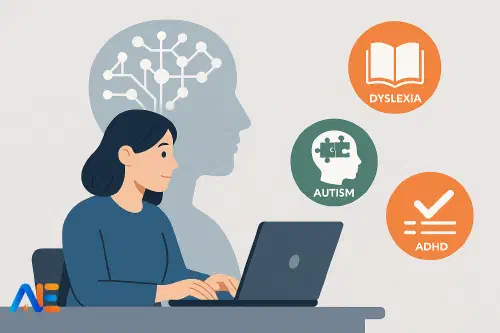
Most AI tools promise “personalised learning”, but pupils with dyslexia, autism and ADHD usually need something more specific than “easier text” or “extra practice”. They need predictable structures, explicit scaffolds and adjustments that map directly to their support plans.
Automated Education already offers powerful features such as Lesson Accessibility, Difficulty Adjuster, Reading Comprehension Generator and behaviour management support. The challenge is turning these into joined‑up workflows that match real pupils, not hypothetical personas.
This article walks through concrete, copy‑and‑adapt workflows for three common profiles: dyslexia, autism and ADHD. The aim is not to replace professional judgement, but to give you practical starting points you can refine with the pupil, family and wider team.
Working principles
Before diving into tools, it helps to agree some working principles that keep AI use safe, ethical and genuinely supportive.
Co‑design with pupils
Whenever possible, design AI‑supported adjustments with the pupil, not for them. For example, sit down with a Year 8 autistic pupil and ask:
- “Do you prefer visual schedules or written checklists?”
- “Would it help if we summarised long instructions into three bullet points?”
Then show them how AI can produce those supports on demand. This builds agency and reduces the sense that support is being “done to” them.
Safeguarding and data
Keep pupil data safe and minimal:
- Avoid names and identifiable details in prompts. Use “Year 6 pupil with dyslexia who reads at roughly Year 3 level” rather than a real name.
- Never paste safeguarding information, medical details or sensitive family context into AI tools.
- Store any AI‑generated plans in your usual secure systems, just as you would any other SEND documentation.
A simple habit is to write prompts as if they might be read in a staff meeting: professional, anonymised and focused on learning needs.
Neurodiversity‑affirming practice
AI should help you reduce shame and deficit language. When prompting, frame needs in terms of differences, not failures:
- “Pupil processes spoken language more easily than dense text.”
- “Pupil benefits from predictable routines and clear transitions.”
This language influences the tone of the output. You can explicitly instruct the AI: “Use strengths‑based, neurodiversity‑affirming language throughout.”
Dyslexia: concrete workflows
Imagine “Amir”, a Year 5 pupil with dyslexia. He decodes slowly, tires quickly with long reading, and avoids writing, but enjoys science and discussion.
Reading support
Start with Lesson Accessibility to adapt core texts.
Prompt example for accessible text
You are supporting a Year 5 pupil with dyslexia who reads at around Year 3 level.
Take the following science text and:
- Keep key vocabulary but explain it clearly
- Shorten sentences
- Add subheadings every 2–3 paragraphs
- Provide a short glossary at the end
- Offer a bullet‑point summary in 5 points
Use a calm, age‑respectful tone.
TEXT: [paste original]
You can then use the Difficulty Adjuster to generate a lower‑reading‑age version for independent work, while keeping the original for whole‑class teaching.
Comprehension and discussion
Use the Reading Comprehension Generator to create questions at different levels, so Amir can access the same content as peers.
Prompt example for comprehension
Generate 8 reading comprehension questions for a Year 5 science text, suitable for a pupil with dyslexia who benefits from short, clear questions.
- 3 literal questions with answer choices
- 3 inferential questions, one‑sentence answers
- 2 “big idea” discussion questions
Provide model answers. Avoid trick wording.
You might print the questions with extra spacing and read them aloud, letting Amir answer orally or using a laptop.
Writing and assessment access
For writing, the summariser and Lesson Accessibility tools can scaffold planning.
Prompt example for writing scaffold
Create a writing frame for a Year 5 explanation text about evaporation for a pupil with dyslexia.
- Provide a simple 4‑part plan (introduction, what happens, why it happens, real‑life examples)
- Under each part, give sentence starters and key vocabulary
- Keep the visual layout very clear with plenty of white space.
You can also use AI to produce a reduced‑writing version of an assessment, replacing long written responses with matching, labelling or oral alternatives while keeping the same learning objective.
Autism: structure and clarity
Now consider “Lena”, a Year 8 autistic pupil. She is academically able but struggles with ambiguous instructions, sudden changes and sensory overload.
Predictable lessons and transitions
AI can help you build consistent lesson scripts and visual schedules.
Prompt example for lesson structure
Create a clear, student‑friendly lesson outline for a 60‑minute Year 8 history lesson on the causes of the First World War.
The outline will be used for an autistic pupil who benefits from predictability and explicit transitions.
Include:
- A simple timeline of the lesson in 6–8 steps
- Exact phrases the teacher can say to signal transitions
- A short “what to do if you feel overwhelmed” box.
You can adapt this outline each week so Lena sees similar structures across subjects.
Discover the power of Automated Education by joining out community of educators who are reclaiming their time whilst enriching their classrooms. With our intuitive platform, you can automate administrative tasks, personalise student learning, and engage with your class like never before.
Don’t let administrative tasks overshadow your passion for teaching. Sign up today and transform your educational environment with Automated Education.
🎓 Register for FREE!
Clarifying instructions
Lena may misinterpret vague instructions like “work sensibly” or “finish what you can”. Use the summariser to turn complex instructions into concrete steps.
Prompt example for clear instructions
Rewrite these task instructions so they are:
- Numbered step by step
- Free of idioms and vague phrases
- Explicit about time limits and expected output
Audience: Year 8 autistic pupil.
ORIGINAL INSTRUCTIONS: [paste]
You can paste in your existing worksheet instructions and quickly produce an autistic‑friendly version without redesigning materials from scratch.
Reducing social and sensory stress
Automated Education’s behaviour support features, similar to those described in Behaviour Management Support, can help you plan scripts for tricky situations.
Prompt example for coping scripts
Suggest 5 short, respectful teacher scripts for supporting a Year 8 autistic pupil who:
- Needs to leave the room briefly when overwhelmed
- Finds group work stressful
Scripts should: - Avoid drawing attention to the pupil
- Normalise self‑regulation
- Offer clear choices.
These scripts can be shared with all staff so responses are consistent across lessons.
ADHD: routines and low‑friction feedback
Finally, meet “Jay”, a Year 6 pupil with ADHD. He is bright and curious but struggles to start tasks, sustain focus and finish work within time.
Chunked tasks and micro‑deadlines
Use the Difficulty Adjuster and Lesson Accessibility tools to break larger tasks into smaller, time‑bound chunks.
Prompt example for chunking
Take this 40‑minute maths task and break it into 4 chunks for a Year 6 pupil with ADHD.
For each chunk, specify:
- Estimated time (5–10 minutes)
- Clear goal
- How the pupil can quickly check if they are on track.
TASK: [paste]
Print or display the chunks so Jay can tick them off, reducing the sense of being overwhelmed.
Visual routines and reminders
The summariser can create simple checklists for common classroom routines, such as “start‑of‑lesson” or “handing in homework”.
Prompt example for routine card
Create a 5‑step checklist called “When I start independent work” for a Year 6 pupil with ADHD.
Steps should be short, concrete and positively phrased.
Include a one‑sentence reminder about asking for help.
You can laminate this card and keep it on Jay’s desk, using the same wording across subjects.
Fast, specific feedback
Pupils with ADHD often benefit from immediate, specific feedback rather than waiting for detailed marking. Use AI to help you phrase fast feedback comments.
Prompt example for feedback bank
Generate 15 short feedback comments for Year 6 writing, aimed at a pupil with ADHD.
- Focus on effort, strategies and small improvements
- Avoid vague praise
- Each comment must be 1–2 sentences only.
Save your favourite comments and reuse them, editing by hand as needed.
Whole‑class resources with built‑in support
One of the most powerful uses of AI is creating whole‑class materials that quietly embed SEND adjustments, so pupils do not feel singled out.
For example, when planning a new topic, you might:
- Use Lesson Accessibility to produce a “core text” and a “supported text” version, but give both to everyone.
- Generate mixed‑level questions with the Reading Comprehension Generator, labelling them by challenge level rather than by “ability”.
- Create a visual lesson outline and a written checklist for each lesson, normalised as part of your classroom routine.
This approach means dyslexic, autistic and ADHD pupils can access what they need without extra fuss, while many other pupils benefit too. For more ideas on differentiated materials, see Lesson Accessibility and Difficulty Adjuster.
Sharing AI set‑ups and templates
SENDCos can play a key role in curating and sharing effective AI prompts. Rather than each teacher starting from scratch, build a shared bank of templates.
A practical approach is to create a short “AI profile” for each pupil alongside their usual support plan. For example:
- “For Amir, use the ‘dyslexia reading scaffold’ prompt for new texts and the ‘short writing frame’ prompt for extended writing.”
- “For Lena, always run complex instructions through the ‘clear instructions for autism’ prompt before printing.”
These prompts can live in a shared document or staff intranet. During SEND briefings, model how to paste, adapt and reuse them. Over time, you can refine prompts based on what pupils say works best.
First 30 days checklist
To embed AI‑supported SEND provision without overwhelming staff, focus on a few high‑impact habits in the first month.
Week 1–2
Start small with one class and one pupil profile.
- Choose one dyslexic, one autistic or one ADHD pupil (with consent and professional judgement).
- Create two or three core prompts for that pupil’s key needs.
- Trial them in one subject only, reflecting after each lesson.
Week 3
Extend to whole‑class resources.
- Use AI to create accessible versions of upcoming texts for the whole class.
- Build a standard lesson outline template and use it in at least two subjects.
- Begin a shared “prompt bank” document for your team.
Week 4
Review, refine and share.
- Ask pupils what helped and what did not; adjust prompts accordingly.
- Share one successful workflow in a staff meeting or SEND update.
- Decide on two or three “standard” prompts every teacher will use for instructions, routines or scaffolds.
By the end of 30 days, AI should feel less like an add‑on and more like part of your everyday toolkit for inclusive practice.
Happy supporting!
The Automated Education Team