What you get for free
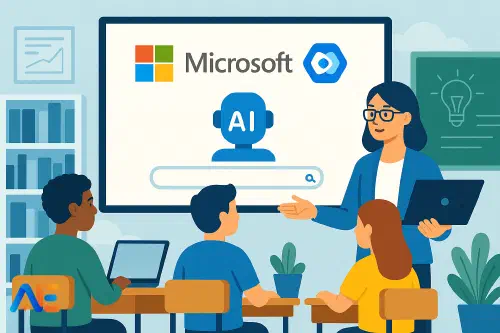
The completely free version of Microsoft Copilot runs in a browser at copilot.microsoft.com. Staff and students can use it on any device with a modern browser and internet access, without Office 365 licences or an IT rollout.
In its free web form, Copilot can:
- Chat in natural language and remember context within a single conversation
- Generate and refine text: explanations, questions, model answers, plans, letters
- Help with languages: rephrase, simplify, translate, check tone
- Summarise web content you paste in (within length limits)
- Create images from text prompts (if image generation is enabled in your region)
You do not get deep integration with school files, Teams or OneDrive, and you cannot centrally manage it through your school tenant unless you move to paid education licences. That makes the free version a good sandbox: powerful enough to be useful, but naturally limited in what it can access.
Think of it as an advanced, school‑friendly search and writing assistant in the browser, rather than a full Microsoft 365 co‑pilot sitting inside your documents. For many teachers, that is more than enough to begin meaningful experimentation.
For a wider view of where Copilot fits alongside other tools, you might find our Back‑to‑School AI Toolkit helpful.
Safety, privacy and policy
Before encouraging classroom use, it is worth taking a short, structured tour of safety and policy questions. This does not need to be complex, but it does need to be explicit.
First, check your data position. The public, free version of Copilot is a consumer service. Content is processed in Microsoft’s cloud, and while major providers now typically state they do not use your prompts to train foundation models, the service is not designed as a formal pupil data store. The safest stance in school is:
- Do not paste in personal data about identifiable pupils, parents or staff
- Do not upload unredacted safeguarding, behaviour or medical information
- Treat it like a public website, not a secure MIS
Second, align with your AI or technology policies. If you already have, or are drafting, an AI acceptable use policy, Copilot should sit within it. If you are still at the early stages, our guide on creating your school’s AI acceptable use policy offers a simple structure and model wording.
At a minimum, clarify:
- Who is allowed to use Copilot (staff only, older students, everyone under supervision)
- Where it may be used (in class, for homework, only on school devices, etc.)
- What is prohibited (personal data, hate speech, bypassing filters, generating explicit content)
- How you will respond to misuse
Third, consider safeguarding and filtering. Ensure Copilot is subject to the same web filtering as other sites. Test some edge‑case prompts yourself to see how it responds. While modern AI tools include safety layers, they are not perfect; you still need your usual supervision, classroom norms and reporting channels.
Finally, communicate clearly with families. A short letter or email explaining what Copilot is, how it will be used, and what safeguards you have in place will reduce anxiety and invite constructive questions.
Quick teacher workflows
The easiest way to start is to use Copilot purely as a teacher tool. This avoids pupil accounts, while letting you build confidence and spot where it genuinely helps.
Open copilot.microsoft.com, choose a balanced or precise mode, and try workflows such as:
Planning tomorrow’s lesson
Paste in your learning objective and class description:
“You are a teacher planning a 45‑minute lesson on equivalent fractions for a mixed‑attainment Year 5 class. They struggle with maths confidence. Suggest a simple lesson structure with a starter, main activity and plenary, including quick assessment checkpoints.”
Then iterate. Ask Copilot to add more concrete examples, reduce written instructions, or suggest alternatives if you have limited resources.
Differentiating quickly
Take an existing task and ask Copilot to adjust it:
“Rewrite these three questions to be more accessible for a lower‑attaining group, keeping the same core concept but using simpler language and numbers.”
Then reverse it for stretch tasks:
“Now create three challenge questions on the same topic that require deeper reasoning, not just calculation.”
Drafting parent communication
Provide bullet points and ask Copilot for a first draft of a letter or email, then edit heavily to match your voice and context. Always keep final professional responsibility for what you send.
Generating practice questions
For retrieval practice, ask Copilot:
“Generate ten short, mixed‑topic recall questions for a Year 9 class on these topics: …”
Check each item and tweak before use. Over time you will learn which topics it handles reliably and which need more manual control.
For more on this teacher‑first approach, see our piece on the human–AI co‑pilot model in teaching.
Student uses by age band
When you are ready to involve students, start small and low‑risk, with clear supervision and rules.
Early primary (roughly 5–8)
Keep Copilot as a teacher‑mediated tool displayed on the board. Pupils can help you craft prompts, for example:
- Generating story starters based on characters the class invents
- Asking for alternative word choices to improve a sentence
- Exploring “what if” questions in science as a springboard for practical work
You control the keyboard; they contribute the ideas.
Upper primary (roughly 8–11)
Under supervision, older pupils can begin to use Copilot in pairs on school devices. Focus on activities where they critique and improve AI output, not just accept it:
- Compare Copilot’s explanation of a concept with your textbook and highlight differences
- Ask it to suggest success criteria for a piece of writing, then refine them as a class
- Generate a draft set of quiz questions, then correct errors and add better ones
Lower secondary (roughly 11–14)
Introduce Copilot as a research and thinking partner, with a strong emphasis on checking sources:
- Ask for a summary of a topic, then verify each claim using trusted websites
- Use it to generate multiple perspectives on a historical event, then evaluate bias
- Practise rewriting complex texts into simpler language, comparing with a human‑written version
Upper secondary (roughly 14–18)
Here the focus shifts to ethical, strategic use and exam‑aware boundaries:
- Use Copilot to suggest revision questions, mnemonics or alternative explanations
- Practise interrogating model answers: “How could this essay be improved to reach a top grade?”
- Explore how AI might be used in workplaces related to their subjects, and discuss limitations
Throughout, emphasise that Copilot is a tool to think with, not a shortcut to avoid thinking.
Discover the power of Automated Education by joining out community of educators who are reclaiming their time whilst enriching their classrooms. With our intuitive platform, you can automate administrative tasks, personalise student learning, and engage with your class like never before.
Don’t let administrative tasks overshadow your passion for teaching. Sign up today and transform your educational environment with Automated Education.
🎓 Register for FREE!
Subject examples
Copilot’s flexibility makes it useful across subjects, even in its free web form.
Primary literacy
Ask Copilot to generate three versions of a short text: one below, at, and above expected reading level. Use them in guided reading groups, or compare them to discuss vocabulary and sentence structure. Pupils can then attempt their own “up‑levelling” of a basic text.
Secondary science
Provide Copilot with a practical method and ask it to predict common mistakes or sources of error. Pupils can then design a checklist to avoid these issues during the experiment. After the practical, revisit the list and update it based on real experience.
Languages
Use Copilot as a conversation partner for short, scaffolded dialogues. Ask it to respond only in the target language, at an appropriate level, and to correct mistakes gently. Students can copy the chat transcript and annotate it with grammar notes.
Humanities
For history or geography, ask Copilot to generate contrasting viewpoints on a controversial issue, then challenge pupils to fact‑check and critique each stance. This keeps the focus on critical thinking, not on accepting AI as authoritative.
Maths
Copilot can generate varied word problems around a single structure, such as ratio or percentage change. You can ask it to provide problems only, with no solutions, then later request worked solutions for teacher reference or for pupils to mark.
Assessment, copyright and exams
Assessment is where guardrails matter most. You will need clear guidance, ideally written into your AI policy and assessment handbook.
For homework and coursework, specify when AI tools are:
- Prohibited (e.g. certain essays or projects)
- Allowed only for specific stages (e.g. idea generation, planning, checking grammar)
- Allowed with declaration (students must state how AI was used)
Make it explicit that passing off AI‑generated work as entirely one’s own is academic dishonesty. Model how to reference AI support where appropriate, for instance: “I used Microsoft Copilot to help me generate initial ideas and then rewrote the final answer myself.”
Copyright is another important consideration. Copilot’s outputs may draw on a broad training set. For most routine classroom uses, this risk is low, but avoid relying on AI‑generated images or text for high‑stakes, public‑facing materials without careful review. When teaching about copyright, Copilot itself can be a case study in derivative and transformative works.
Exam rules will depend on your local system and awarding bodies. As a rule of thumb, assume that AI tools are not allowed in formal, summative assessments unless explicitly stated. Use Copilot to prepare for exams, not during them. Our September AI readiness checklist includes prompts for checking alignment with external assessment regulations.
Simple weekly routines
To make Copilot a sustainable part of practice, build small, repeatable routines rather than occasional one‑off experiments.
You might decide that every Monday you spend ten minutes with Copilot generating retrieval questions for the week, or that after each unit you ask it to suggest three different ways to revisit key concepts for different groups. Form tutors could use it once a week to draft discussion prompts for personal development or careers education.
With students, you might establish a regular “AI clinic” slot where a class uses Copilot under supervision to refine revision questions, practise paraphrasing, or critique AI explanations. Keeping it scheduled and purposeful helps avoid unsupervised, ad‑hoc use that drifts into shortcuts.
Importantly, keep reflecting together: What worked? What felt uncomfortable? What should we tighten in our guidelines? This iterative mindset turns Copilot from a novelty into a tool you are consciously shaping to fit your values.
From experiments to whole‑school
Moving from individual experiments to a coherent school approach does not require a huge project. Start by:
- Identifying a small group of volunteer staff to trial the free web version and share examples
- Collecting a handful of simple, low‑risk workflows that save time or improve learning
- Agreeing basic guardrails around data, safeguarding and assessment, and writing them down
- Sharing successes and pitfalls in staff meetings or briefings
Over time, you can align Copilot use with your digital strategy, professional development plans and curriculum priorities. You may decide the free version is sufficient, or that you want deeper integration via education licences. Either way, the habits you build now—clear prompts, critical evaluation, ethical use—will transfer.
Used thoughtfully, the free web version of Microsoft Copilot can offer real value from day one, without licences or complex rollout. Start small, stay transparent, and keep the focus on human judgement and learning.
Happy experimenting!
The Automated Education Team